Breaking News




Popular News





Enter your email address below and subscribe to our newsletter
Cloud insights for your day
 Bycld2day
A practical introduction to C# and Visual Studio, blending classic programming discipline with modern .NET techniques, guiding beginners toward strong foundations, clear thinking, better habits, and confidence through hands-on examples.
Welcome to The C# Chronicles: Modern Coding with Old-School Wisdom. Since today we are inaugurating this column with C# and Visual Studio, we would like to offer a few practical tips—lessons learned the hard way—that will save you many hours of frustration and more than a few sleepless nights.
First of all, never, ever leave the names of objects as the environment assigns them automatically. Having button1, textBox1, and label1 scattered throughout your code is a recipe for disaster once the program grows even slightly. Use descriptive names instead, such as btnConvert or txtInput. The difference becomes painfully clear when, two months later, you return to your project searching for a bug: you will immediately understand what each element does instead of trying to decipher your own past choices. This is a bad habit which, if not corrected early, tends to follow developers for years.
Secondly, learn to appreciate the Framework. C# is built upon .NET, which is essentially a vast collection of ready-made libraries (classes). You can, of course, write your own classes, but before doing so, always check whether the solution already exists. Later in this column we will explore NuGet, which opens the door to an entire ecosystem of reusable components. Almost every modern innovation in software today is built on top of these libraries.
Know your tools. It is difficult to imagine serious Windows development without understanding the power hidden inside the Visual Studio Debugger. The best friend of every programmer is the breakpoint—the small red dot that freezes execution at the precise moment you need answers. Learn to use it; you will rely on it more than you expect. If you can watch variable values change while your program runs, you have already solved most debugging problems. And remember: no application should ever “crash” simply because a user typed something unexpected. Users make mistakes. Programs must anticipate them. That is why proper error handling (the familiar try...catch) is not optional, but essential.
Before writing a single line of code, design the Form—on paper, in your head, or both. If your program is large, sketch the layout and note what each button is meant to do. The Toolbox is there to help you, not to tempt you into randomly throwing controls onto the screen. A tidy interface is often the first sign of a tidy mind behind the keyboard.
Finally, do not be discouraged when Visual Studio presents you with Build Errors. The red squiggly line under your code is not an enemy; it is a guardian. It exists to warn you before small mistakes grow into real problems.
Like every entry in The C# Chronicles: Modern Coding with Old-School Wisdom, this example focuses more on clarity than on complexity.
We chose to begin this column with something simple: a temperature converter. More experienced C# developers may find it trivial, but every strong foundation begins with modest examples. This program is not meant to be a commercial-grade application. It is a learning exercise—nothing more, and nothing less.
The application accepts a number from the user and converts it from Celsius to Fahrenheit when a button is pressed. At this stage, we rely on the user’s goodwill to enter a valid number. Although we have added a protection mechanism (exception handling), a real-world application would usually prevent invalid input altogether.
Careful readers will also notice that there is no validation for extreme values that do not exist in physics (such as temperatures below absolute zero). Such details may seem obvious, yet in professional software they matter.
In Windows Forms, everything revolves around events. There is no linear begin...end execution flow as in older procedural programs. Instead, the application waits patiently until something happens. When the user clicks the button, the corresponding event handler—btnConvert_Click—awakens the code and execution begins.
Type conversion is a key concept here. A TextBox always provides text (string), while mathematical calculations require numbers (double). The Parse method performs this crucial conversion and bridges the gap between the user interface and the logic of the program.
For this project we will use Visual Studio 2022 and .NET 6 (or later), ensuring that what you learn reflects modern development practice.
Even in a small example like this, The C# Chronicles: Modern Coding with Old-School Wisdom encourages thinking about structure before writing code.
Before we start dragging controls onto the Form, it helps to sketch a tiny “architecture” of what we are building. Do not imagine anything grand—no servers, no clouds, no enterprise diagrams. Just a simple mental map that answers one question:
Who talks to whom, and when?
Our converter consists of four small parts:
User Interface (UI)
The Form and its controls:
txtCelsius (TextBox) for inputbtnConvert (Button) to trigger conversionlblResult (Label) to show outputEvent Handler (The Trigger Point)
The button click method (btnConvert_Click).
This is the “doorbell” of the program: when the user clicks, the method runs.
Conversion Logic (The Math)
The formula:
F = (C × 9/5) + 32
Error Handling (The Safety Net)
A try...catch block ensures the program does not collapse if input is invalid.
A magazine-friendly schematic looks like this:
+------------------+           click            +----------------------+
|      User        | -------------------------> |   btnConvert_Click    |
+------------------+                            +----------+-----------+
        |                                                     |
        | types text                                           |
        v                                                     v
+------------------+     read text      +----------------------+------+
|   txtCelsius     | -----------------> |  Parse + Calculate + Format  |
+------------------+                    +-----------+------------------+
                                                    |
                                                    | write result text
                                                    v
                                           +------------------+
                                           |    lblResult     |
                                           +------------------+

If something goes wrong (letters, empty input, etc.)
the flow is redirected into:
             +------------------+
             |      catch       |
             +------------------+
                     |
                     v
              lblResult = "Please enter a valid number."
So our architecture is simply:
Input → Convert → Output
with a safety net underneath.
That is all you need for a first Windows Forms application: a clear flow, a single event, and predictable behavior.
The first step is selecting the correct template. Microsoft offers two versions of Windows Forms, and choosing the right one matters.
Open Visual Studio 2022 and click Create a new project.
In the search bar, type Windows Forms.
You will see two main options:
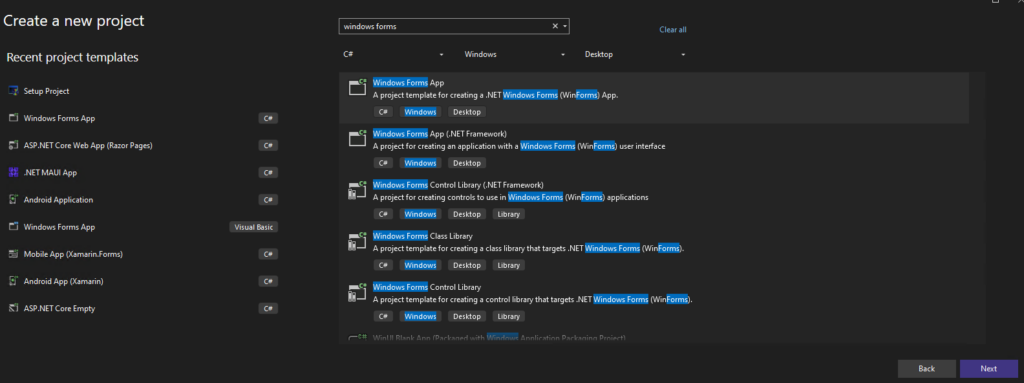
Click Next.
Name your project SimpleConverter.
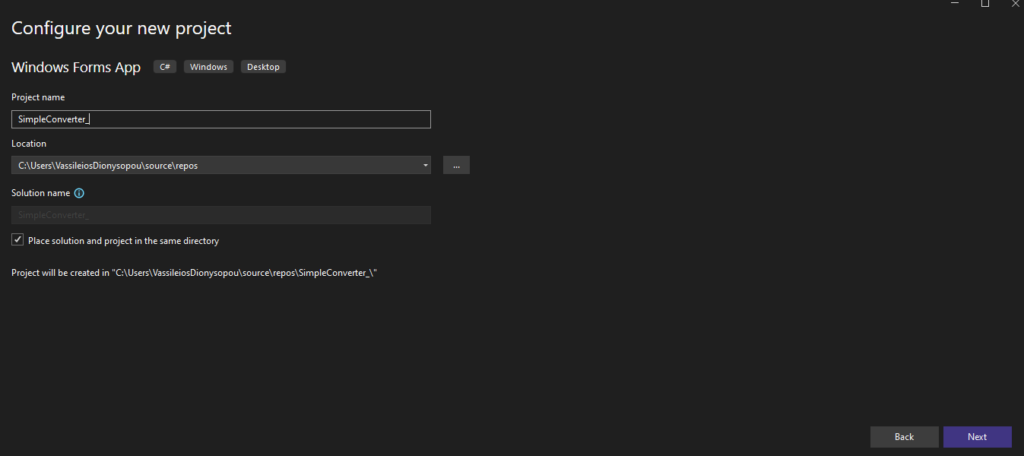
Click Create.
Visual Studio will generate the necessary files and present you with a blank window called Form1. This is your application.
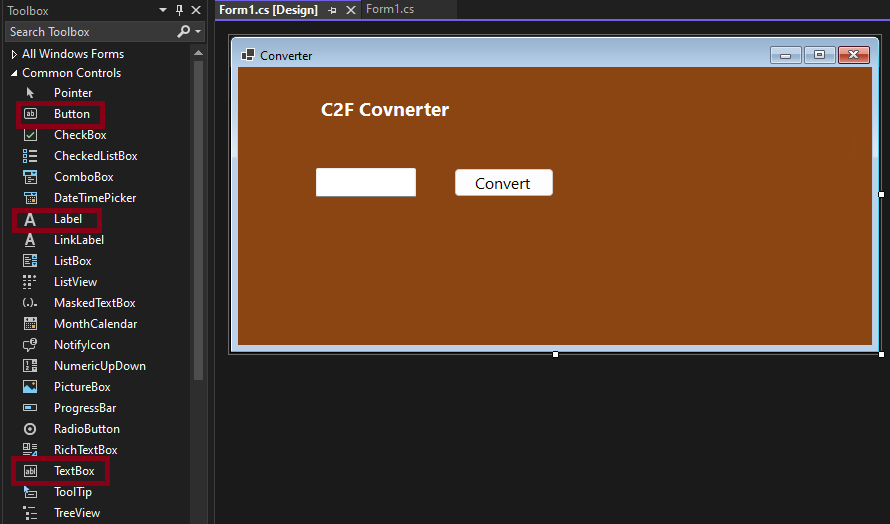
You now have a blank form. We must add controls so the user can interact with the application. Look for the Toolbox tab on the left. If you do not see it, open it from the View menu.
We need three elements:
Drag one of each onto your form.
Now apply the naming discipline discussed earlier:
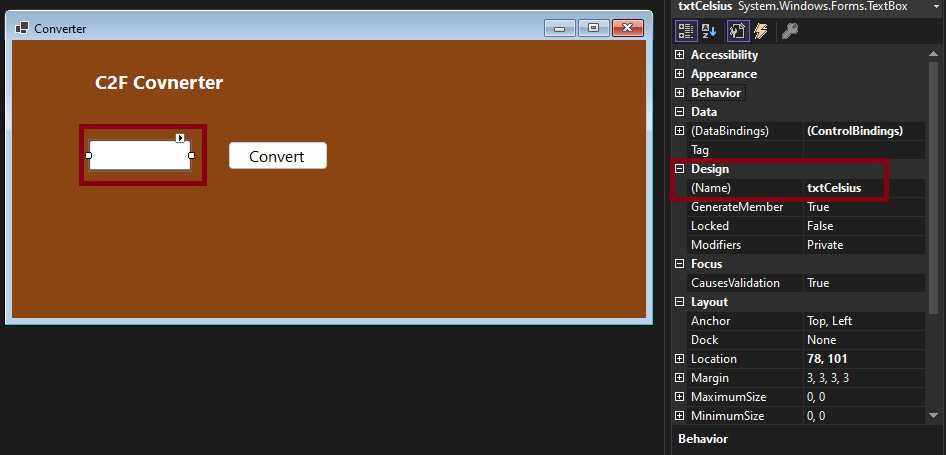
txtCelsiusbtnConvert and its Text to ConvertlblResultArrange them neatly: TextBox at the top, Button in the middle, Label at the far right. Even a small program deserves a tidy interface.
The design is ready. Now we must teach the program what to do.
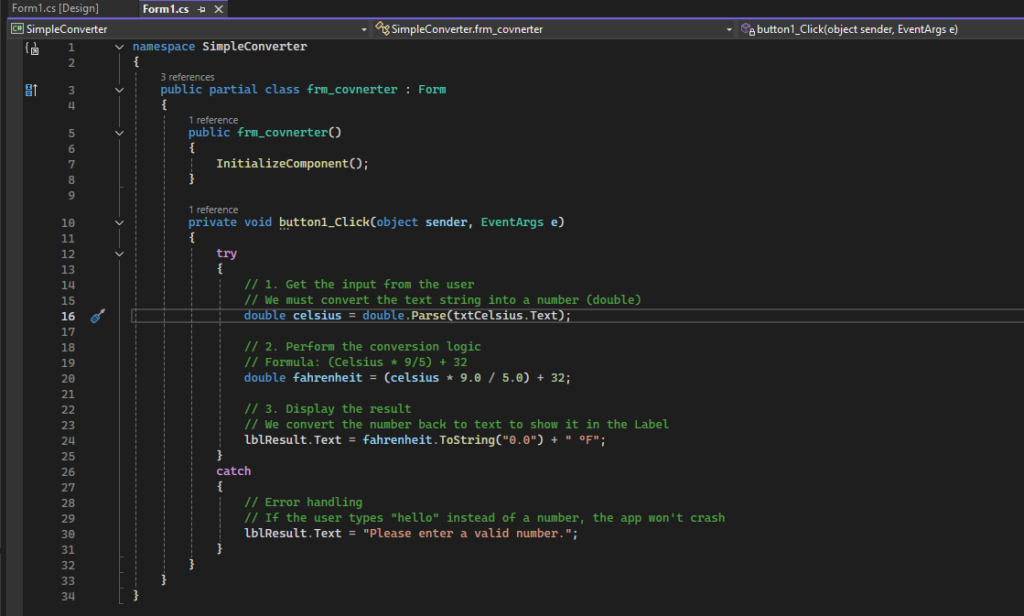
Double-click the Convert button. Visual Studio opens Form1.cs and places your cursor inside the btnConvert_Click method. Insert the following code between the curly braces:
try
{
    // 1. Get the input from the user
    // We must convert the text string into a number (double)
    double celsius = double.Parse(txtCelsius.Text);

    // 2. Perform the conversion logic
    // Formula: (Celsius * 9/5) + 32
    double fahrenheit = (celsius * 9.0 / 5.0) + 32;

    // 3. Display the result
    // We convert the number back to text to show it in the Label
    lblResult.Text = fahrenheit.ToString("0.0") + " °F";
}
catch
{
    // Error handling
    // If the user types "hello" instead of a number, the app won't crash
    lblResult.Text = "Please enter a valid number.";
}
Like the following image:
Place a breakpoint on this line:
double celsius = double.Parse(txtCelsius.Text);
Run the program (F5), enter a value, and click Convert. When execution stops, hover over variables and watch their values change. This small habit turns debugging from frustration into understanding.
Classic Beginner Mistake
Forgetting to rename controls.
Six months later, button3, textBox7, and label2 will make your own code feel like it was written by someone else.
Try This at Home
Test your program with:
0 → should give 32.0 °F100 → should give 212.0 °F-40 → interestingly, gives -40.0 °Fhello → should trigger the friendly error messageSmall experiments like these build intuition faster than any textbook.
1) Why we need try...catch
When a user types into a TextBox, the program receives text—always a string. But double.Parse(...) expects that string to look like a number. If the user types hello or leaves the field empty, an exception is thrown. Without try...catch, the program would crash. With it, we handle mistakes gracefully.
Think of it as a fuse box: when something overloads, it trips safely instead of burning the house down.
2) Step 1 — Reading and converting input
double celsius = double.Parse(txtCelsius.Text);
This line is the bridge between the user interface and the program logic.
3) Step 2 — The conversion logic
double fahrenheit = (celsius * 9.0 / 5.0) + 32;
This is the classic formula:
F = (C × 9/5) + 32
4) Step 3 — Formatting and output
lblResult.Text = fahrenheit.ToString("0.0") + " °F";<br>The Label expects text, so we convert the number back into a formatted string.
5) The catch block
catch
{
    lblResult.Text = "Please enter a valid number.";
}
Instead of crashing, the application responds politely. This is real software behavior.
In this first article, we deliberately avoided complex topics such as databases, graphics, or networking. More experienced developers may smile at the simplicity, but our goal was never to impress them. It was to welcome beginners without overwhelming them. Every beginning is difficult—but every serious career in programming begins with simple, well-understood steps.
In Part 2 of The C# Chronicles: Modern Coding with Old-School Wisdom, we will expand this small application by adding more converters (meters to feet, kilograms to pounds) and explore ways to make the window look more modern and refined.